How to Organize NotebookLM with Folders and Tags
NotebookLM has no native folders or tags, so notebooks stay in one flat list. Use folders for each notebook's main home — project, course or client — and tags for attributes that overlap, such as topic, year or source type. NotebookBloom adds both without moving your research out of the browser.
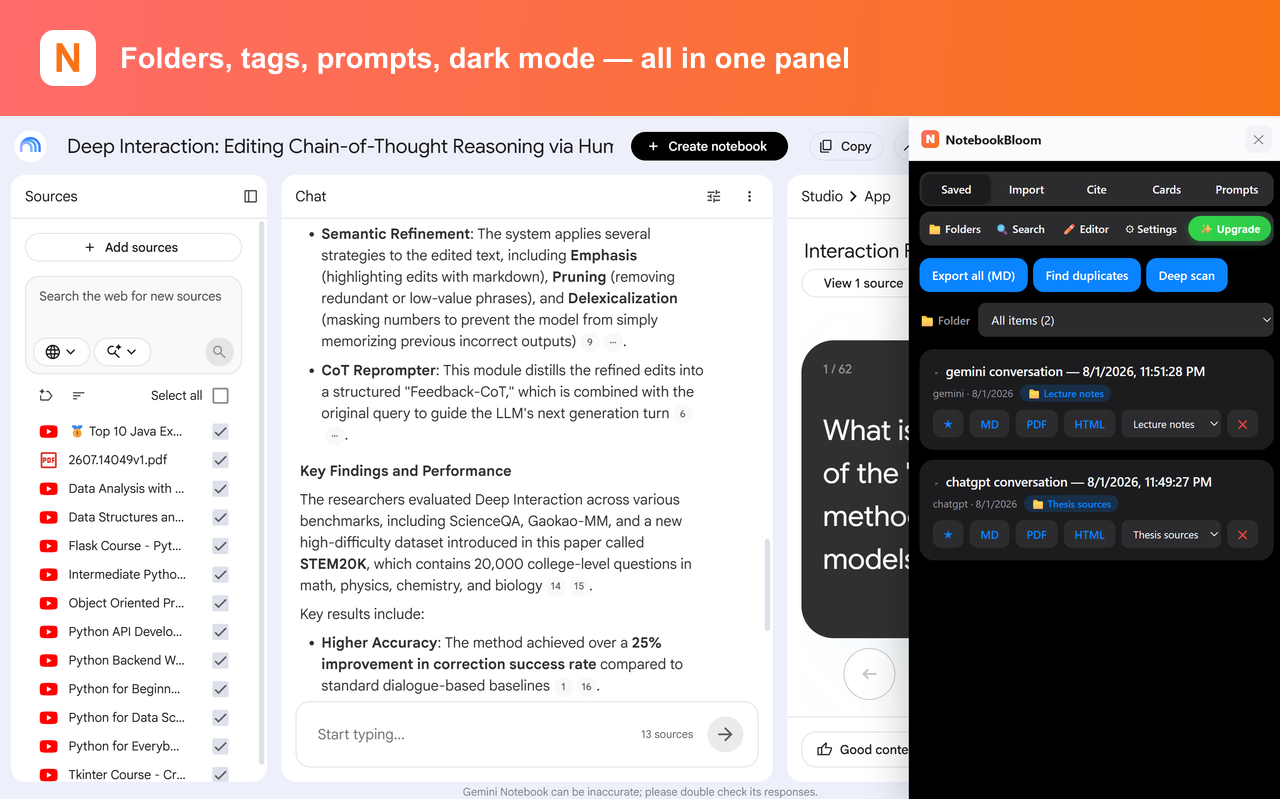
NotebookLM feels tidy when you have three notebooks. A few months later, the home screen can become a wall of similar project names, course readings and temporary research notebooks. The product still gives you one flat list, so organization depends on naming everything perfectly and remembering what you called it.
Google's rename to Gemini Notebook did not add folders, nested collections or tags. The notebooks are still separate spaces, which is useful for focused answers, but awkward once the library grows. The fix is not one giant notebook. It is a small organization system you can keep using without thinking about it.
A folder system that stays manageable
Use folders for the notebook's main home, not every detail about it. A graduate student might use Courses, Thesis, Teaching and Archive. A researcher might use one folder per active project or client. If you create a folder for every topic, the folder list becomes the same mess you were trying to fix.
- Create four to eight broad folders based on how you already divide your work.
- Give every notebook one main folder.
- Archive completed work instead of leaving it mixed with active projects.
- Use a consistent notebook name such as
Project — Topic — Date.
Use tags for everything that overlaps
Folders answer “where does this belong?” Tags answer “what is this?” A notebook can have one obvious folder but several useful tags: interviews, systematic-review,2026, or needs-citation-check. Tags are especially helpful for saved sources and notes that relate to more than one project.
Keep the vocabulary controlled. Pick one form — paper, not a mixture ofpaper, papers and research-paper. Ten reusable tags beat fifty tags you cannot remember.
How NotebookBloom adds the missing layer
NotebookBloom keeps folders and tags in the extension rather than pretending NotebookLM has a native folder API. Your underlying notebooks stay untouched. The organization layer lives locally in the browser, and optional sync uses your own Google Drive.
- Group notebooks by project, class, client or status.
- Tag saved items and sources with reusable labels.
- Search across notebooks when you remember a phrase but not where it lives.
- Bulk-import a source list before filing the new notebook into its folder.
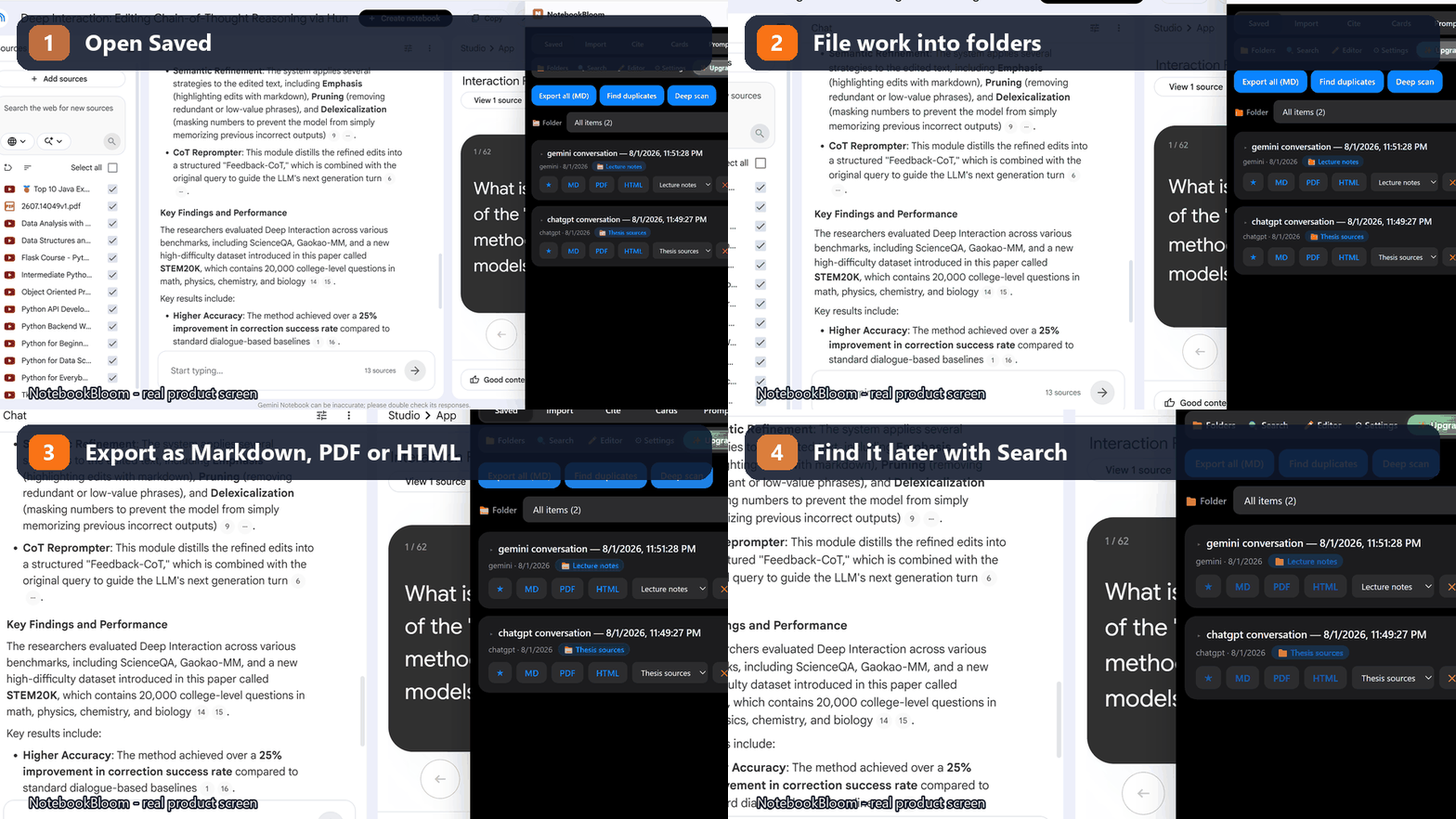
Folders are navigation; search is recovery
Even a good folder system cannot predict what you will remember six months from now. Use folders when you know the project, and cross-notebook searchwhen you only remember a quotation, source or prompt. If you are starting a new project with a long reading list, first bulk-import the sources, then place the notebook in its permanent folder.
The goal is not a perfect taxonomy. It is to stop losing useful research inside a flat list. A few stable folders, a small tag vocabulary and one search box are enough.
FAQ
Does NotebookLM have folders?
No. NotebookLM (now Gemini Notebook) displays notebooks in a flat list and does not provide folders or nested collections. NotebookBloom adds folders alongside the existing notebook interface.
Can I tag NotebookLM notebooks or sources?
NotebookLM does not have a native tagging system. NotebookBloom lets you add tags for overlapping categories such as topic, source type, year or priority.
Should I put every source into one large notebook?
Usually not. Large mixed-topic notebooks are harder to navigate and can make answers less focused. Keep projects separate, organize the notebooks with folders, and use cross-notebook search when you need to find something across the library.
Are NotebookBloom folders stored on its servers?
No. Folder and tag data is stored locally in your browser. Optional sync uses your own Google Drive rather than a NotebookBloom content database.
Do folders change the notebooks inside Google NotebookLM?
No. They are an organization layer added by the extension. Your actual notebooks and sources remain in NotebookLM, so removing the extension does not delete or alter them.
Official references
Product behavior can change. These official pages are the reference points used for this guide.
NotebookBloom is an independent extension and is not affiliated with Google. NotebookLM and Gemini Notebook are names for the same Google product; NotebookLM is a trademark of Google LLC.