How to Cite NotebookLM in APA, MLA, Chicago or BibTeX
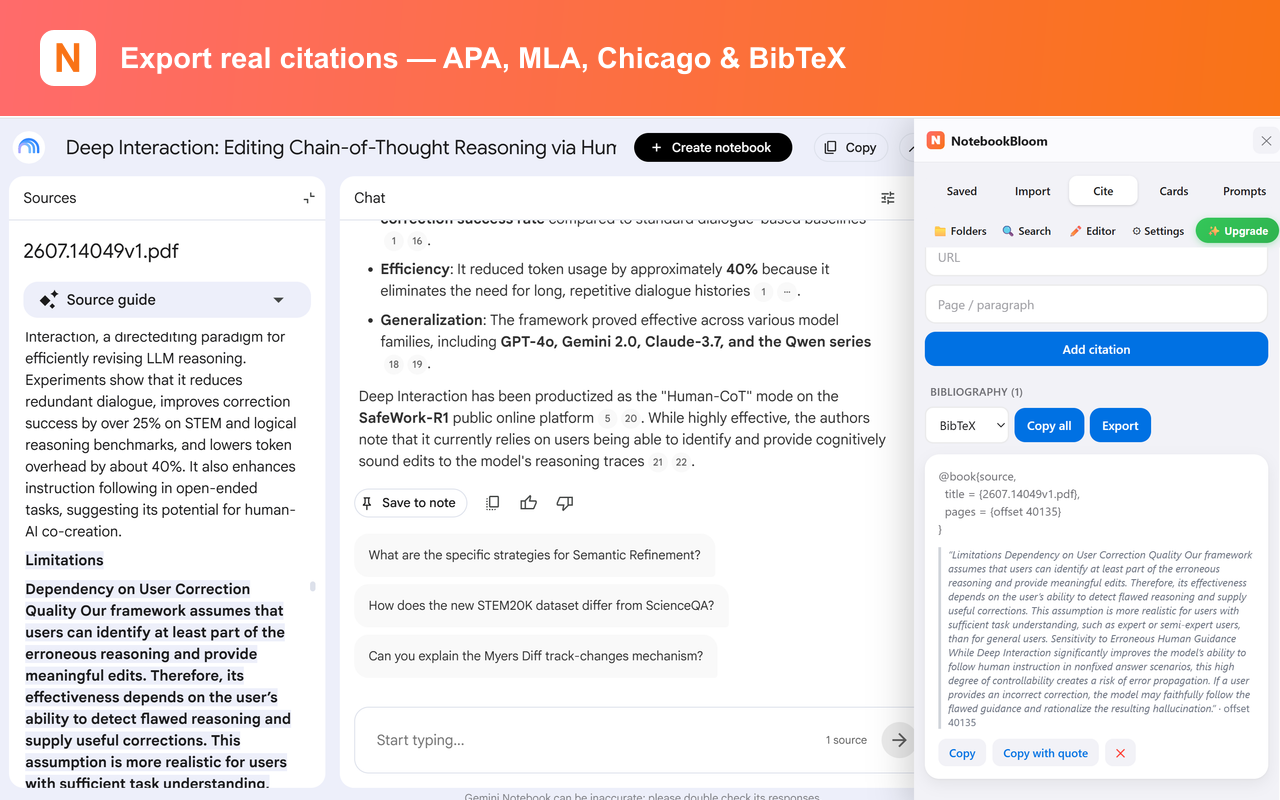
NotebookLM citations point to supporting passages, but they are not formatted references. To use one in a paper, collect the source title, author, year and URL or DOI, then format it as APA, MLA, Chicago or BibTeX. NotebookBloom automates that formatting and keeps the captured passage with the reference.
The first time I tried to write a literature review with NotebookLM, I hit a wall that had nothing to do with the AI being smart. It was smart. The problem was getting anything out of it in a shape my reference manager would accept.
NotebookLM (Google renamed it Gemini Notebook in July 2026 — same app, same notebooks) is genuinely good at pointing you back to the source. You ask a question, you get an answer, and every claim has a little numbered chip you can click to land on the exact sentence in the PDF. For reading, that's great. For citing, it's useless — because a highlighted sentence in a 40-page PDF is not a citation. There's no author string, no year, no page number you can paste after a quote. You still have to build the reference yourself.
So here's the manual workflow I settled on, and then the shortcut I use now that I don't have the patience for the manual one anymore. (Citations are just one of NotebookLM's export limitations; this guide is the deep dive on the citation part.)
A NotebookLM citation is not an APA reference
| What you have | What it tells you | Ready for a paper? |
|---|---|---|
| NotebookLM citation chip | The passage that supports an answer | No |
| APA / MLA / Chicago reference | Author, date, title and publication details | Yes, after checking the metadata |
| BibTeX record | Structured source fields for LaTeX or a reference manager | Yes, after checking the metadata |
Treat the citation chip as evidence navigation, not as the finished bibliography entry. It helps you verify the passage; the reference still needs the source metadata and the rules of the style you use.
The manual way (works, but it's fiddly)
Say NotebookLM gives me a claim backed by citation [4]. Here's what I do, in order:
- Click the citation chip. It jumps to the passage inside the source viewer.
- Open the source itself and find the metadata — title, author(s), year, publisher or journal, and a URL or DOI. For an uploaded PDF this is usually on the first page or in the file properties; for a website source it's in the page itself.
- Decide the format. If I'm writing in LaTeX or keeping things in Zotero, I want BibTeX. If it's a Word doc for a class, I want a ready-made APA or MLA string.
- Type it out. A BibTeX entry ends up looking like this:
@article{smith2021attention,
  author  = {Smith, Jane and Doe, Alan},
  title   = {Attention and Memory in Adult Learning},
  journal = {Journal of Cognitive Science},
  year    = {2021},
  volume  = {14},
  pages   = {231--248},
  doi     = {10.1234/jcs.2021.0042}
}
…and the same source in APA 7th looks like this:
Smith, J., & Doe, A. (2021). Attention and memory in adult learning. Journal of Cognitive Science, 14, 231–248. https://doi.org/10.1234/jcs.2021.0042
Do that once and it's five minutes. Do it for thirty sources across four notebooks the night before a deadline and you'll understand why I stopped.
Where it actually goes wrong
Two things trip people up. First, uploaded PDFs often have messy or missing metadata — a preprint might not list the year cleanly, and NotebookLM won't invent it for you. You have to go check the original. Second, once you have a dozen notebooks going, you lose track of which source lived where, so half the time is just finding the thing again.
The one-click way
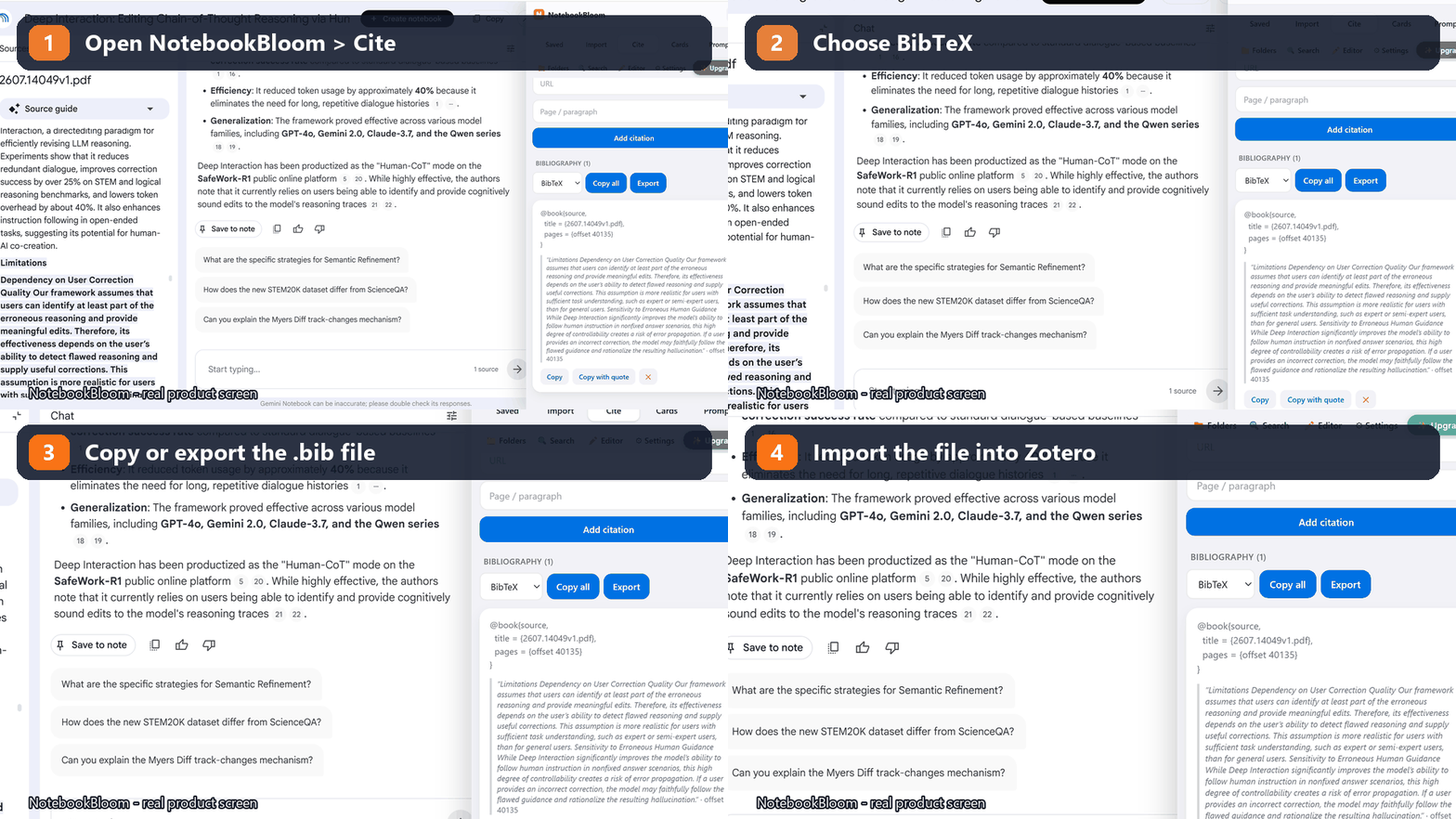
This is the part I built NotebookBloom for, because it was my own daily annoyance. Instead of copying fields around, it reads the source details already sitting in your notebook and generates the reference for you — APA, MLA, Chicago, or BibTeX — ready to paste.
- Pick the source (or a batch of them).
- Choose the style. BibTeX drops straight into a Zotero or Mendeley library as a
.bibfile; APA/MLA/Chicago come out as formatted strings. - Copy, paste, done. The reference carries the source link so you can always trace it back.
Does this still work now that it's called Gemini Notebook?
Yes. The rename from NotebookLM to Gemini Notebook was cosmetic — same site (notebooklm.google.com), same notebooks, same citation chips. Everything above works whether the tab says NotebookLM or Gemini Notebook. If you learned this workflow before the rename, nothing changed except the logo.
If you write anything that needs a bibliography, sort this out once. Future-you, at 1 a.m. before a submission, will be grateful.
FAQ
How do citations work in NotebookLM?
NotebookLM citation chips point to the supporting passage inside a source. They help you verify an answer, but they are not formatted references: there is no author-year citation, bibliography entry, APA, MLA or BibTeX export unless you build it yourself or use a citation tool.
Can NotebookLM export citations by itself?
No. NotebookLM (now Gemini Notebook) shows inline citation chips that jump to a passage in a source, but it has no button to export a formatted reference or bibliography. You either build the reference by hand from the source's metadata, or use an extension like NotebookBloom that turns those sources into APA, MLA, Chicago or BibTeX in one click.
Does NotebookLM give page numbers in its citations?
Not reliably. A citation chip highlights a passage inside the source viewer, but it doesn't surface a stable page number you can paste after a quote — especially for long PDFs. You have to open the source and find the page yourself.
What citation styles can I get from NotebookLM sources?
Natively, none — NotebookLM doesn't format references at all. With NotebookBloom you can export the same source data as APA, MLA, Chicago (formatted strings) or BibTeX (for LaTeX and reference managers).
Is the citation export free?
NotebookBloom's free plan includes a manual citation builder; one-click batch citation export is a Pro feature. Either way it works entirely in your browser.
Official references
Product behavior can change. These official pages are the reference points used for this guide.
NotebookBloom is an independent extension and is not affiliated with Google. NotebookLM and Gemini Notebook are names for the same Google product; NotebookLM is a trademark of Google LLC.